Getting to the command line
OSX
If you're using OSX:
Click the Finder button (the magnifying glass) in the top right of your desktop.
Type "Terminal" into the bar that appears.
Select the first item that appears in the list.
The terminal will look like this:
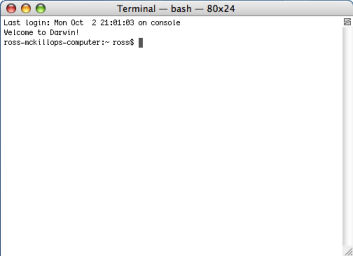
When you see the $, you're in the right place.
Windows
We won't be using Windows's own, non-UNIX version of the command line. Follow these steps to install Git Bash, which we will use in this session:
- Download Git for Windows and install it. You'll be asked a bunch of questions but the defaults are fine.
Click the Windows button on the bottom left of your desktop (or hit the Windows button on your keyboard).
In Programs, open the Git folder.
Select "Git Bash." (Not "Git GUI.")
If you can't find the git folder, just type "git bash" in the search box and select "git bash" when it appears.
You know you're in the right place when you see the
$.
In the next section, we'll learn how to navigate the filesystem in the command line.